Category: Blog

  • hotkey

    Hotkey Behavior

    <button data-hotkey="Shift+?">Show help dialog</button>

    Trigger an action on a target element when the hotkey (key or sequence of keys) is pressed
    on the keyboard. This triggers a focus event on form fields, or a click event on
    other elements.

    The hotkey can be scoped to a form field:

    <button data-hotkey-scope="text-area" data-hotkey="Meta+d" onclick="alert('clicked')">
      press meta+d in text area to click this button
    </button>
    
    <textarea id="text-area">text area</textarea>

    By default, hotkeys are extracted from a target element’s data-hotkey
    attribute, but this can be overridden by passing the hotkey to the registering
    function (install) as a parameter.

    How is this used on GitHub?

    All shortcuts (for example g i, ., Meta+k) within GitHub use hotkey to declare shortcuts in server side templates. This is used on almost every page on GitHub.

    Installation

    $ npm install @github/hotkey
    

    Usage

    HTML

    import {install} from '@github/hotkey'
    
    // Install all the hotkeys on the page
    for (const el of document.querySelectorAll('[data-hotkey]')) {
      install(el)
    }

    Alternatively, the hotkey(s) can be passed to the install function as a parameter e.g.:

    for (const el of document.querySelectorAll('[data-shortcut]')) {
      install(el, el.dataset.shortcut)
    }

    To unregister a hotkey from an element, use uninstall:

    import {uninstall} from '@github/hotkey'
    
    for (const el of document.querySelectorAll('[data-hotkey]')) {
      uninstall(el)
    }

    By default form elements (such as input,textarea,select) or elements with contenteditable will call focus() when the hotkey is triggered. All other elements trigger a click(). All elements, regardless of type, will emit a cancellable hotkey-fire event, so you can customize the behaviour, if you so choose:

    for (const el of document.querySelectorAll('[data-shortcut]')) {
      install(el, el.dataset.shortcut)
    
      if (el.matches('.frobber')) {
        el.addEventListener('hotkey-fire', event => {
          // ensure the default `focus()`/`click()` is prevented:
          event.preventDefault()
    
          // Use a custom behaviour instead
          frobulateFrobber(event.target)
        })
      }
    }

    Hotkey string format

    1. Hotkey matches against the event.key, and uses standard W3C key names for keys and modifiers as documented in UI Events KeyboardEvent key Values.
    2. At minimum a hotkey string must specify one bare key.
    3. Multiple hotkeys (aliases) are separated by a ,. For example the hotkey a,b would activate if the user typed a or b.
    4. Multiple keys separated by a blank space represent a key sequence. For example the hotkey g n would activate when a user types the g key followed by the n key.
    5. Modifier key combos are separated with a + and are prepended to a key in a consistent order as follows: "Control+Alt+Meta+Shift+KEY".
    6. "Mod" is a special modifier that localizes to Meta on MacOS/iOS, and Control on Windows/Linux.
      1. "Mod+" can appear in any order in a hotkey string. For example: "Mod+Alt+Shift+KEY"
      2. Neither the Control or Meta modifiers should appear in a hotkey string with Mod.
    7. "Plus" and "Space" are special key names to represent the + and keys respectively, because these symbols cannot be represented in the normal hotkey string syntax.
    8. You can use the comma key , as a hotkey, e.g. a,, would activate if the user typed a or ,. Control+,,x would activate for Control+, or x.
    9. "Shift" should be included if it would be held and the key is uppercase: ie, Shift+A not A
      1. MacOS outputs lowercase key names when Meta+Shift is held (ie, Meta+Shift+a). In an attempt to normalize this, hotkey will automatically map these key names to uppercase, so the uppercase keys should still be used (ie, "Meta+Shift+A" or "Mod+Shift+A"). However, this normalization only works on US keyboard layouts.

    Example

    The following hotkey would match if the user typed the key sequence a and then b, OR if the user held down the Control, Alt and / keys at the same time.

    'a b,Control+Alt+/'

    🔬 Hotkey Mapper is a tool to help you determine the correct hotkey string for your key combination: https://github.github.io/hotkey/hotkey_mapper.html

    Key-sequence considerations

    Two-key-sequences such as g c and g i are stored
    under the ‘g’ key in a nested object with ‘c’ and ‘i’ keys.

    mappings =
      'c'     : <a href="https://github.com/rails/rails/issues/new" data-hotkey="c">New Issue</a>
      'g'     :
        'c'   : <a href="http://github.com/rails/rails" data-hotkey="g c">Code</a>
        'i'   : <a href="http://github.com/rails/rails/issues" data-hotkey="g i">Issues</a>
    

    In this example, both g c and c could be available as hotkeys on the
    same page, but g c and g can’t coexist. If the user presses
    g, the c hotkey will be unavailable for 1500 ms while we
    wait for either g c or g i.

    Accessibility considerations

    Character Key Shortcuts

    Please note that adding this functionality to your site can be a drawback for
    certain users. Providing a way in your system to disable hotkeys or remap
    them makes sure that those users can still use your site (given that it’s
    accessible to those users).

    See “Understanding Success Criterion 2.1.4: Character Key Shortcuts”
    for further reading on this topic.

    Interactive Elements

    Wherever possible, hotkeys should be add to interactive and focusable elements. If a static element must be used, please follow the guideline in “Adding keyboard-accessible actions to static HTML elements”.

    Development

    npm install
    npm test
    

    License

    Distributed under the MIT license. See LICENSE for details.

    Visit original content creator repository

  • Dokhus-bot

    logo

    Dokhu’s discord bot

    Dokhu’s Bot it made with the purpose to help us to make list of things, like movies, series, etc.

    Who can work locally in ours machines, so it’s not need to execute it in a dedicated server, but it will work also on a server.

    How it works?

    Create a local text archive where the info is save it.

    Can i invite it to my server?

    yeah, the bot is working right now in Keroku server, so is enable to invite with this link

    Project status: In progress.

    Features

    Done

    To do

    • Save lists in text archives.
    • Can covert data into CSV archive for portability in LetterBox.
    • Show an image and description of the movie.
    • Be able to use a Google Doc as text archive to save info.
    • Find folders in Spanish OS.
    • Let able to sincronice same list from different local computers.

    Configuration

    The next is required if you want to run it by yourself, otherwise wouldn’t be needed, because you can invite the bot to your server.

    1. Download the project and make it sure all modules and library’s are charged by Maven.

    2. Go to GitHub Developers Portal and create a bot.

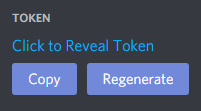
    3. In Settings > Bot you will find the Token. Copy it.

      Token

    4. Go to .Env archive, where you are gonna find the system environment variable DISCORD_BOT_TOKEN where is save it the token. You have to paste the token from the bot before copied.

    5. Now you can invite your bot to your server, and run it in your machine.

    Commands

    in progress.

    Technologies and Library’s

    Visit original content creator repository
  • literate-economic-analysis

    Literate Economic Data Analysis

    Computation Notebooks


    Daniela Pinto Veizaga

    University of California, Berkeley

    CEGA


    0. 👋 Introduction

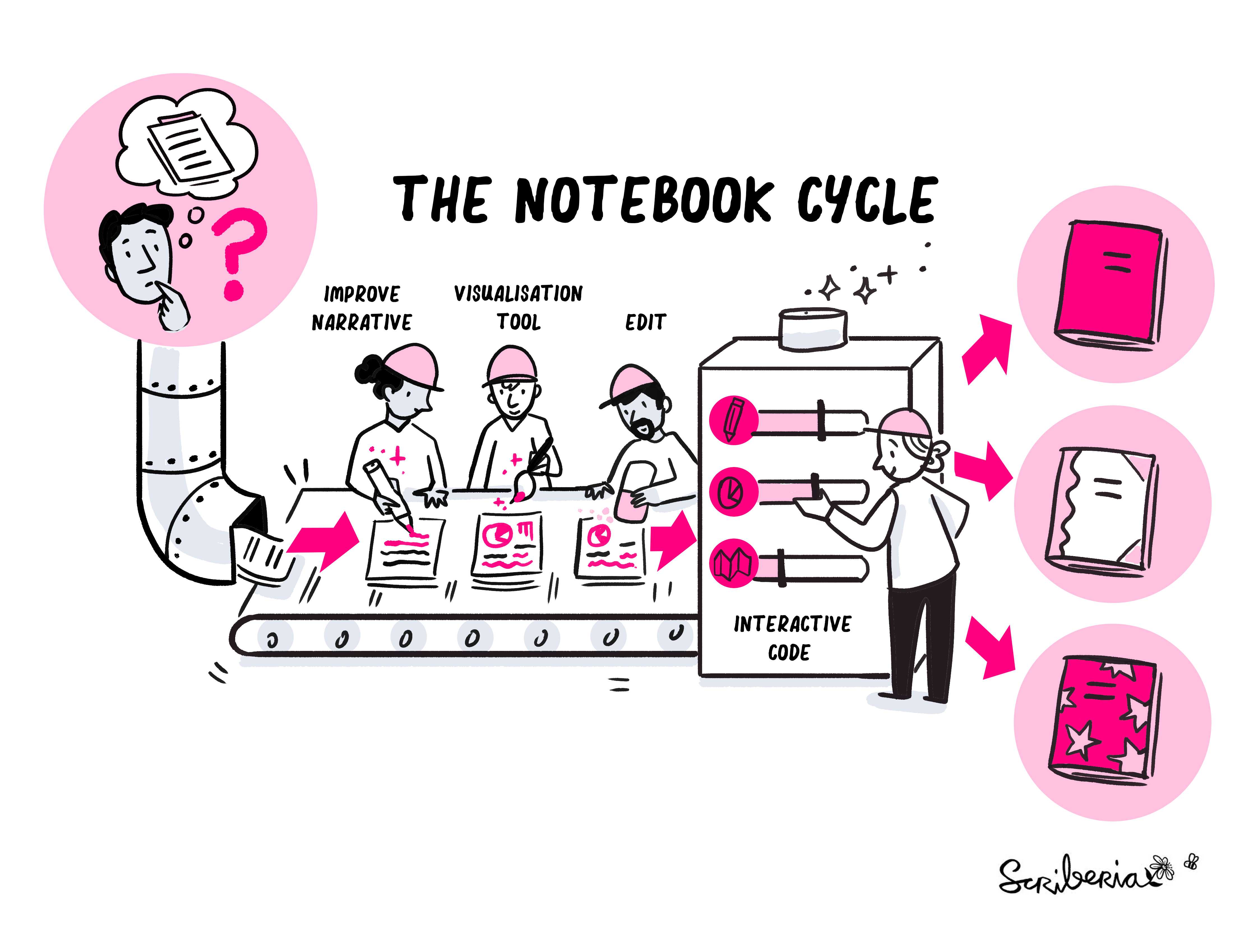
    Computation notebooks have become a successful mechanism for prototyping and writing examples to showcase a piece of software, share data analysis and document research workflows. The Literate Economic Data Analysis (LEDA) workshop is a hands-on tutorial1 through which we will learn how notebooks can complement the science and methodological development of social science research.

    Source: The Turing Way project. Illustration by Scriberia as part of The Turing Way book dash in November 2022. Zenodo. http://doi.org/10.5281/zenodo.7587336

    Who is this workshop for?

    This workshop is designed for those who want to take their data analysis skills and expertise in Stata and enhance them with computation notebooks. Jupyter notebook is one such form of interactive computing environment that offers multilingual programming language support to create dynamic and static documents, books, presentations, blogs, and resources.

    The workshop will introduce you to create static documents with Jupyter notebooks, add interactivity to them and integrate them with your regular workflow in Stata, translating code, widgets, narrative text, equations, and graphical objects into one working, collaborative, interactive and reproducible document.

    What we will cover?

    The curriculum lays out the importance of reproducibility ◊in the context of economic data analysis, and providing an overview of the common concepts, tools and resources. We assume attendees are familiar to version control, testing, and reproducible computational environments. We build on these core concepts, to boost our data analysis skills integrating Jupyter Notebooks, Python and Stata.

    The curriculum is as follows:

    1. Background.
    2. Prerequirements.
    3. Setup Instructions.
    4. Kick-off.
    5. Miscellaneous.

    1. Background

    The name of this workshop is inspired in Donald Knuth’s conceptual use of literate programming, defined as a script, notebook, or computational document that contains an explanation of a program’s logic in a natural language, with snippets of macros and source code, which can be compiled and rerun. An executable paper!

    As economists we draw on a handful of statistical softwares, such as Stata, R, and Python, to implement our econometric analysis. Regardless of our software preference, it is in our best interest to ensure our analyses are reproducible, properly documented and executable.

    Jupyter notebooks, as well as other computation notebooks such as RMarkdowns, are heavily used in data science, because of their interoperability with multiple programming languages –Julia, Python, R, SQL, bash, and Stata! Incorporating results directly into your documents is an important step in reproducible research. Jupyter notebooks can be comprised mainly of three types of cells (though more can be added with plugins):

    • Markdown cells: Text can be added to Jupyter Notebooks using this type of cells. Markdown is a popular markup language that is a superset of HTML.

    • Code Cells: Allow users to edit and write code, with full syntax highlighting and tab completion. The programming language you use depends on the kernel, and the default kernel runs Python. The results that are returned from this computation are then displayed in the notebook as the cell’s output.

    • Raw cells: Provide a place in which you can write output directly. Raw cells are not evaluated by the notebook.

    2. Prerequirements

    To adequately follow the workshop, you must fulfill several requirements. Please take sometime before our workshop to fulfill them:
    • Install Python and Stata in your machine,
    • Some experience working with the command line,
    • Create a GitHub account,
    • Familiarize yourself with version control.

    2.1. Command Line or CLI

    The command line interface allows users to type text commands instructing the computer to do specific tasks, instead of clicking around. Most operating systems come with a graphical user interface (GUI), enabling us to see things on our screens and click around.

    Compared to a visually attractive GUI, the command line is less user friendly –initially! However, as we perform more data intensive tasks, the CLI is a powerful and vital resource because it exploits less computational resources and is highly efficient for performing repetitive tasks.

    2.2. Python

    The Python ecosystem consists of a lot of software packages that bring extended functionality and high productivity straight away. There are multiple ways to install Python, either using Anaconda or installing it directly in your computer. Anaconda is highly recommended for beginners.

    • Install Python in macOS

    As a macOS user, you probably have Python installed on your system already. To check if it’s installed, open your CLI and type:

    python --version

    If not installed, you can install Python with Homebrew, a package installer. First, install Homebrew.

    /bin/bash -c "$(curl -fsSL https://raw.githubusercontent.com/Homebrew/install/master/install.sh)"

    Then, install brew to path:

    $export PATH="/usr/local/opt/python/libexec/bin:$PATH"

    Next, install Python.

    brew install python

    For other operating systems, please refer to the resources available at the end of this document.

    2.3. Github

    GitHub is a code hosting platform for version control and collaboration, widely use to store and share code, track changes, and collaborate on projects with others. To start using GitHub, you need to create an account.

    2.4. Stata

    Acquire your Stata license and install it your computer. Stata’s website is comprehensive in terms of the steps needed to install Stata.

    3. Setup Instructions

    3.1. Clone repository

    To start working on your code locally or remotely, you need to clone the repository. To do this, click on the green “Code” button and copy the URL. Then, open up your terminal (or command prompt on Windows) and navigate to the directory where you want to store your code. In the command line type:

    git clone https://github.com/rlmic/literate-economic-analysis.git
    

    3.2. Install required packages

    Jupyter

    Make sure we have jupyter notebook installed in your machine. If you are using Anaconda, jupyter comes pre-packaged and it’s already installed. If you are not using Anaconda, you probably have to install jupyterlab or jupyter notebook. If you want to install jupyterlab directly, without using Anaconda, you can open the terminal and run:

    pip install jupyterlab
    

    PyStata

    pip install pystata

    Stata Setup

    • a. Open the terminal and install stata_setup:
    pip install stata_setup
    
    pip install --upgrade --user stata_setup
    • b. Then, fix the Stata set_up file by opening stata_setup file and change line 45 with:
    config.init(edition)
    
    • c. Locate path to the folder containing Stata. If you use Windows, it is probably C:\Program Files\Stata16\ado. If you use Mac, it is /Applications/Stata/ado. If you use Unix, it is /usr/local/stata16/ado. In Stata type:
    display c(sysdir_stata)
    • d. Open the constants.py file under src. Change these variables to match the edition and path to the folder containing Stata in your machine.
    sys_dir = "/Applications/Stata/"
    stat_edi = "mp"

    Other packages

    python -m pip install -U pip
    
    python -m pip install -U matplotlib
    

    Stata Jupyter Kernel

    The Stata Jupyter Kernel enables using Stata directly in jupyter notebooks. To install in your local computer directly, open terminal and run:

    pip install -U git+https://github.com/kylebarron/stata_kernel
    python -m stata_kernel.install
    

    To install using anaconda tools, it is important to specify -y when issuing install requests via conda as there is no way to accept the user requested y input to proceed with install. To do so, run:

    conda install -y -c conda-forge stata_kernel
    

    Once the software is installed you need to install the jupyter kernel on your computer.

    python -m stata_kernel.install

    3.3. Launch Jupyter Notebook

    Once installed, launch your notebook with the following commands:

    jupyter lab

    jupyter-lab

    jupyter notebook

    jupyter notebook

    4. Kick-off

    There are two ways to run Stata code in jupyter notebook, if you want to use a Stata Kernel to run Stata code in Jupyter, then you must select the Stata kernel.

    Execute the jupyter notebooks available at the following path notebooks:

    5. Miscellaneous

    5.1. Quick Start

    • Command line install Anaconda on macOs. You can check how to install Anaconda in windows, following the instructions in Anaconda.

    Use this method if you prefer to use a terminal (highly recommended). Make sure you have preinstalled xcode, brew and wget.

    + Open terminal
    
    + Requirements
    

    Make sure you have preinstalled xcode, brew and wget.

    • Install xcode
    xcode-select --install
    
    • Install homebrew
    /bin/bash -c "$(curl -fsSL https://raw.githubusercontent.com/Homebrew/install/HEAD/install.sh)"
    
    • Install brew
    brew install wget
    
    • Download miniconda
    wget https://repo.anaconda.com/miniconda/Miniconda3-latest-MacOSX-x86_64.sh -O ~/miniconda.sh
    
    bash ~/miniconda.sh -b -p $HOME/miniconda
    
    • Change paths
    source <path to conda>/bin/activate
    
    conda init zsh
    
    • Install necessary packages in conda environment.
    pip install stata_setup
    
    pip install pystata
    
    • Clone repository
    git clone https://github.com/rlmic/literate-economic-analysis.git
    
    • Launch jupyter lab
    jupyter lab
    
    • Change PYTHONPATH
    export PYTHONPATH=$PWD
    
    • Jupyter notebook to HTML
    jupyter nbconvert --execute --to html notebook.ipynb
    

    5.2. Interactive example:

    Example

    5.3 Key jupyter notebook shortcuts

    • shift + enter to run an active cell

    • esc + L – show line numbers

    • esc + M – format cell as Markdown cell

    • esc + a – insert cell above current cell

    • esc + b – insert cell below current cell

    5.2 Other useful resources

    Command line

    Python

    Github

    Computational notebooks

    Jupyter

    Stata and Jupyter

    Footnotes

    1. This tutorial was launched as part of the Research Transparency and Reproducibility Training (RT2) 2023, a conference hosted at the University of California, Berkeley that aims to provide an overview of tools and practices for transparent and reproducible social science research.

    Visit original content creator repository
  • machine-kvm2-driver

    This is developed using https://github.com/dhiltgen/docker-machine-kvm and https://github.com/kubernetes/minikube/tree/master/pkg/drivers/kvm

    docker-machine-kvm2

    KVM2 driver for docker-machine

    This driver leverages the new plugin architecture being
    developed for Docker Machine.

    Quick start instructions

    • Install libvirt and qemu-kvm on your system (e.g., sudo apt-get install libvirt-bin qemu-kvm)
      • Add yourself to the libvirtd group (may vary by linux distro) so you don’t need to sudo
    • Install docker-machine
    • Go to the
      releases
      page and download the docker-machine-driver-kvm binary, putting it
      in your PATH.
    • You can now create virtual machines using this driver with
      docker-machine create -d kvm myengine0.

    Build from Source

    $ yum install -y libvirt-devel curl git gcc  //CentOS,Fedora
    
    $ apt-get install -y libvirt-dev curl git gcc //Ubuntu
    
    $ make build
    

    Capabilities

    Images

    By default docker-machine-kvm uses a boot2docker.iso as guest os for the kvm hypervisior. It’s also possible to use every guest os image that is derived from boot2docker.iso as well.
    For using another image use the --kvm-boot2docker-url parameter.

    Dual Network

    • eth1 – A host private network called docker-machines is automatically created to ensure we always have connectivity to the VMs. The docker-machine ip command will always return this IP address which is only accessible from your local system.
    • eth0 – You can specify any libvirt named network. If you don’t specify one, the “default” named network will be used.
      • If you have exotic networking topolgies (openvswitch, etc.), you can use virsh edit mymachinename after creation, modify the first network definition by hand, then reboot the VM for the changes to take effect.
      • Typically this would be your “public” network accessible from external systems
      • To retrieve the IP address of this network, you can run a command like the following:
      docker-machine ssh mymachinename "ip -one -4 addr show dev eth0|cut -f7 -d' '"

    Driver Parameters

    Here are all currently driver parameters listed that you can use.

    Parameter Description
    –kvm-cpu-count Sets the used CPU Cores for the KVM Machine. Defaults to 1 .
    –kvm-disk-size Sets the kvm machine Disk size in MB. Defaults to 20000 .
    –kvm-memory Sets the Memory of the kvm machine in MB. Defaults to 1024.
    –kvm-network Sets the Network of the kvm machinee which it should connect to. Defaults to default.
    –kvm-boot2docker-url Sets the url from which host the image is loaded. By default it’s not set.
    –kvm-cache-mode Sets the caching mode of the kvm machine. Defaults to default.
    –kvm-io-mode-url Sets the disk io mode of the kvm machine. Defaults to threads.


    Visit original content creator repository

  • perforce-commit-discord-bot

    Perforce Commit Logger Discord Bot 🗒️ ✏️

    Build Status Issues

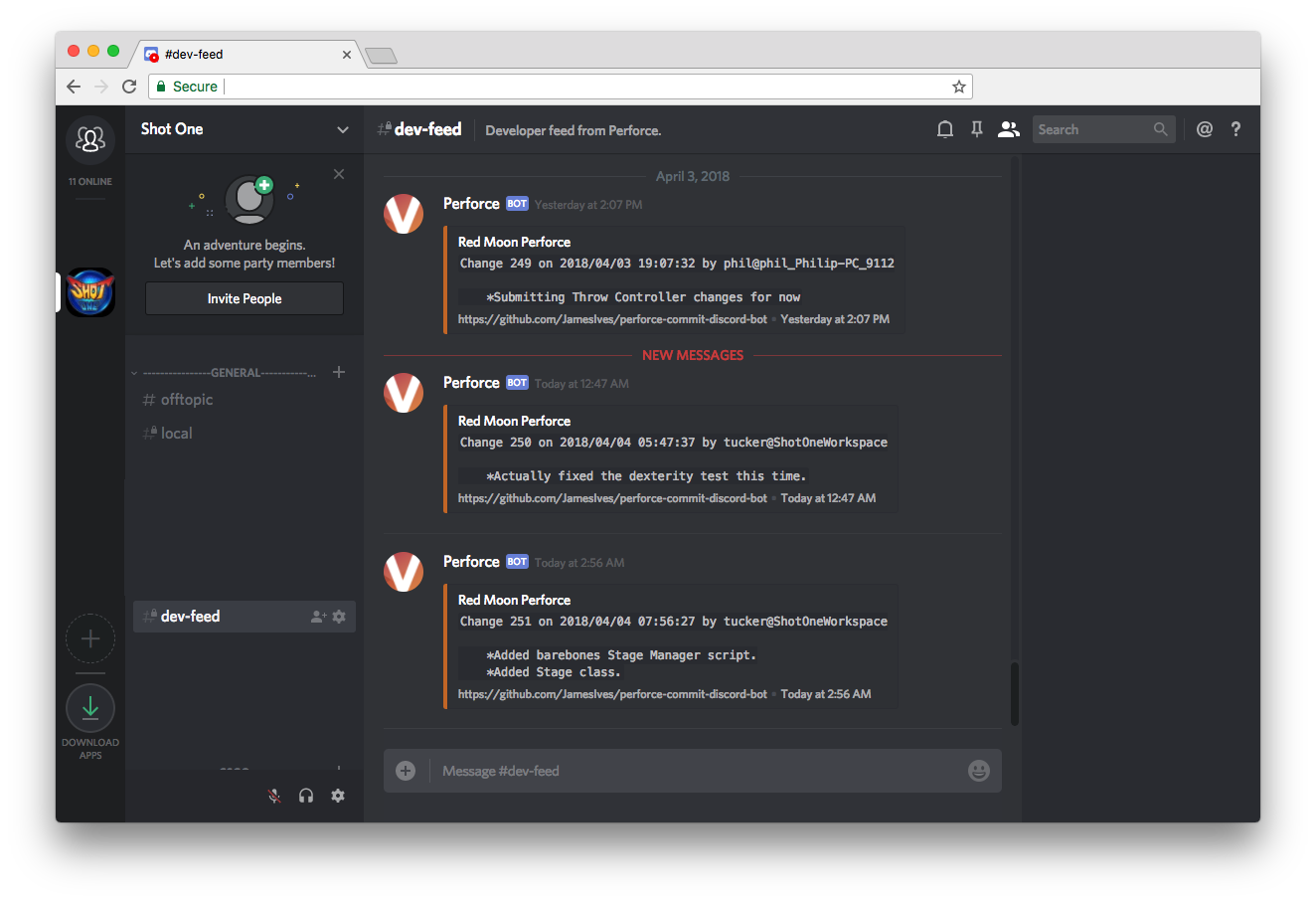
    With this bot you’re able to keep track of commits made to a Perforce version control server within a Discord channel.

    Installation Steps 💽

    1. Within your Discord server go to the settings for the channel you’d like the commit logs to be posted to and copy the webhook URL.
    2. Save the webhook URL as an environment variable called DISCORD_WEBHOOK_URL.
    3. The service requires access to the p4 changes command in the terminal, your bot should be installed somewhere where it can automatically perform this command without the session expiring. Once suitable access has been provided you’ll need to run $ pip install -r requirements.txt followed by $ python app.py to initialize it.
    4. Optionally you should consider creating a CRON script or something similar that restarts the app.py file on server reboot in order to keep the bot alive.

    Unit tests can be run using the $ python tests.py command.

    Getting Started ✈️

    Every thirty seconds the bot runs a Perforce command in the terminal that checks for the most recent changes. If it finds one it stores it in memory, if the change it finds is the same as the one it gathered previously then it discards it. You’ll need to provide the bot with access to your servers Perforce command line. One way of doing this is running the Python application on the server which hosts your Perforce instance. If you can type p4 changes yourself then the bot will be able to do its thing.

    Configuration 📁

    The installation will require you to enter a number of settings as environment variables. Below you’ll find an explanation of each.

    Key Value Information Required
    DISCORD_WEBHOOK_URL The Webhook URL for the Discord channel you’d like the bot to post its messages to. Yes

    Example

    Visit original content creator repository
  • bin

    Short scripts, which do not belong to my dotfiles. Unless otherwise stated,
    these files are in the public domain.

    List:

    Visit original content creator repository

  • Urdu-Text-Preprocessing

    Hi, I’m MD Ryhan! 👋

    Urdu Text Preprocesing Task

    Urdu text preprocessing is an important step in natural language processing that involves cleaning, normalizing, and transforming raw Urdu text data into a form that can be analyzed by machines. In Python, there are various libraries and tools available for Urdu text preprocessing that can be used to perform tasks such as tokenization, lemmatization, stop word removal, normalization, and more.

    Here is a brief overview of some of the common Urdu text preprocessing tasks that can be performed in Python:

    • Tokenization: Tokenization involves splitting a piece of text into individual words or tokens. This is an important step in text analysis because it provides a basic unit of analysis that can be used to count occurrences of words, perform sentiment analysis, and more. Urdu text can be tokenized using libraries such as Urduhack, spaCy, and NLTK.

    • Urdu Stopword removal: Removing words that occur frequently in a language and are unlikely to carry any useful information for text classification.

    • Urdu Text Lemmatization: Lemmatization can be an important step in Urdu text preprocessing, as it can help to reduce the number of unique words in a corpus and improve the accuracy of natural language processing models.

    • Hashtag, HTML tag, mention, punctuation, number, and URL removal: Removing all the hashtags, HTML tags, mentions, punctuations, numbers, and URLs from the text.

    • Part-of-speech tagging:: Part-of-speech (POS) tagging involves identifying the grammatical parts of speech of each word in a sentence, such as nouns, verbs, and adjectives. POS tagging can be performed using libraries such as Urduhack,stanza and spaCy.

    • Count POS Tag: The output of the ud_pos_tag() function is a list of tuples, where each tuple contains a word and its corresponding POS tag. We then use the Counter() function from the collections library to count the frequency of each POS tag in the text.

    Overall, Urdu text preprocessing in Python involves a combination of these tasks to transform raw text data into a form that can be analyzed by natural language processing models. The choice of preprocessing tasks will depend on the specific NLP task at hand, as well as the quality and complexity of the input text data.

    🚀 About Me

    I’m a data scientist with a specialization in Natural Language Processing (NLP). I have experience working on NLP projects and conducting research in this field.

    As an NLP researcher, I have expertise in a variety of NLP techniques such as text classification, sentiment analysis, named entity recognition, and text summarization.

    🔗 Links

    portfolio

    linkedin

    Visit original content creator repository
  • gotoolbox

    gotoolbox

    A kitchen sink of Go tools that I’ve found useful. Uses only the standard library, no external dependencies.

    contents

    example usage

    go get github.com/jritsema/gotoolbox
    

    utilities

    package main
    
    import "github.com/jritsema/gotoolbox"
    
    func main() {
    
    	s := []string{"a", "b", "c"}
    	if gotoolbox.SliceContainsLike(&s, "b") {
    		fmt.Println("b exists")
    	}
    
    	err := gotoolbox.Retry(3, 1, func() error {
    		return callBrittleAPI()
    	})
    	if err != nil {
    		fmt.Println("callBrittleAPI failed after 3 retries: %w", err)
    	}
    
    	f := "config.json"
    	if !gotoolbox.IsDirectory(f) && gotoolbox.FileExists(f) {
    		config, err := gotoolbox.ReadJSONFile(f)
    		if err != nil {
    			fmt.Println("error reading json file: %w", err)
    		}
    	}
    
    	value := gotoolbox.GetEnvWithDefault("MY_ENVVAR", "true")
    
    	command := exec.Command("docker", "build", "-t", "foo", ".")
    	err = gotoolbox.ExecCmd(command, true)
    	if err != nil {
    		fmt.Println("error executing command: %w", err)
    	}
    
    	var data interface{}
    	err = gotoolbox.HttpGetJSON("https://api.example.com/data.json", &data)
    
    	err = gotoolbox.HttpPutJSON("https://api.example.com/data.json", data)
    
    	var res Response
    	err = gotoolbox.HttpPostJSON("https://api.example.com/data.json", data, &res, http.StatusCreated)
    }

    web package

    package main
    
    import (
    	"embed"
    	"html/template"
    	"net/http"
    	"github.com/jritsema/gotoolbox/web"
    )
    
    var (
    	//go:embed all:templates/*
    	templateFS embed.FS
    	html *template.Template
    )
    
    type Data struct {
    	Hello string `json:"hello"`
    }
    
    func index(r *http.Request) *web.Response {
    	return web.HTML(http.StatusOK, html, "index.html", Data{Hello: "world"}, nil)
    }
    
    func api(r *http.Request) *web.Response {
    	return web.DataJSON(http.StatusOK, Data{Hello: "world"}, nil)
    }
    
    func main() {
    	html, _ = web.TemplateParseFSRecursive(templateFS, ".html", true, nil)
    	mux := http.NewServeMux()
    	mux.Handle("/api", web.Action(api))
    	mux.Handle("https://github.com/", web.Action(index))
    	http.ListenAndServe(":8080", mux)
    }

    development

    
    Choose a make command to run
    
    vet vet code
    test run unit tests
    build build a binary
    autobuild auto build when source files change
    start build and run local project


    Visit original content creator repository

  • nedextract

    github repo badge github license badge RSD fair-software.eu Build Coverage Status cffconvert markdown-link-check OpenSSF Best Practices DOI

    Nedextract

    nedextract is being developed to extract specific information from annual report PDF files that are written in Dutch. Currently it tries to do the following:

    • Read the PDF file, and perform Named Entity Recognition (NER) using Stanza to extract all persons and all organisations named in the document, which are then processed by the processes listed below.

    • Extract persons: using a rule-based method that searches for specific keywords, this module tries to identify:

      • Ambassadors

      • People in important positions in the organisation. The code tries to determine a main job description (e.g. director or board) and a sub-job description (e.g. chairman or treasurer). Note that these positions are identified and outputted in Dutch.
        The main jobs that are considered are:

        • directeur
        • raad van toezicht
        • bestuur
        • ledenraad
        • kascommissie
        • controlecommisie.

        The sub positions that are considered are:

        • directeur
        • voorzitter
        • vicevoorzitter
        • lid
        • penningmeester
        • commissaris
        • adviseur

      For each person that is identified, the code searches for keywords in the sentences in which the name appears to determine the main position, or the sentence directly before or after that. Subjobs are determine based on words appearing directly before or after the name of a person for whom a main job has been determined. For the main jobs and sub positions, various ways of writing are considered in the keywords. Also before the search for the job-identification starts, name-deduplication is performed by creating lists of names that (likely) refer to one and the same person (e.g. Jane Doe and J. Doe).

    • Extract related organisations:

      • After Stanza NER collects all candidates for mentioned organisations, postprocessing tasks try to determine which of these candidates are most likely true candidates. This is done by considering: how often the terms is mentioned in the document, how often the term was identified as an organisation by Stanza NER, whether the term contains keywords that make it likely to be a true positive, and whether the term contains keywords that make it likely to be a false positive. For candidates that are mentioned only once in the text, it is also considered whether the term by itself (i.e. without context) is identified as an organisation by Stanza NER. Additionally, for candidates that are mentioned only once, an extra check is performed to determine whether part of the candidate org is found to be a in the list of orgs that are already identified as true, and whether that true org is common within the text. In that case the candidate is found to be ‘already part of another true org’, and not added to the true orgs. This is done, because sometimes an additional random word is identified by NER as being part of an organisation’s name.
      • For those terms that are identified as true organisations, the number of occurrences in the document of each of them (in it’s entirety, enclosed by word boudaries) is determined.
      • Finally, the identified organisations are attempted to be matched on a list of provided organisations using the anbis argument, to collect their rsin number for further analysis. An empty file ./Data/Anbis_clean.csv is availble that serves as template for such a file. Matching is attempted both on currentStatutoryName and shortBusinessName. Only full matches (independent of capitals) and full matches with the additional term ‘Stichting’ at the start of the identified organisation (again independent of capitals) are considered for matching. Fuzzy matching is not used here, because during testing, this was found to lead to a significant amount of false positives.
    • Classify the sector in which the organisation is active. The code uses a pre-trained model to identify one of eight sectors in which the organisation is active. The model is trained on the 2020 annual report pdf files of CBF certified organisations.

    Prerequisites

    1. Python 3.8, 3.9, 3.10, 3.11
    2. Poppler; poppler is a prerequisite to install pdftotext, instructions can be found here: https://pypi.org/project/pdftotext/. Please note that to install poppler on a Windows machine using conda-forge, Microsoft Visual C++ build tools have to be installed first.

    Installation

    nedextract can be installed using pip:

    pip install nedextract

    The required packages that are installed are: FuzzyWuzzy, NumPy, openpyxl, poppler, pandas, pdftotext, python-Levenshtein, scikit-learn, Stanza, and xlsxwriter.1

    Usage

    Input

    The full pipeline can be executed from the command line using: python3 -m nedextract.run_nedextract Followed by one or more of the following arguments:

    • Input data, one or more pdf files, using one of the following arguments:
      • -f file: path to a single pdf file
      • -d directory: path to a directory containing pdf files
      • -u url: link to a pdf file
      • -uf urlf: text file containing one or multiple urls to pdf files. The text file should contain one url per line, without headers and footers.
    • -t tasks (optional): can either be ‘people’, ‘orgs’, ‘sectors’ or ‘all’. Indicates which tasks to be performed. Defualts to ‘people’.
    • -a anbis (option): path to a .csv file which will be used with the orgs task. The file should contain (at least) the columns rsin, currentStatutoryName, and shortBusinessName. An empty example file, that is also the default file, can be found in the folder ‘Data’. The data in the file will be used to try to match identified named organisations on to collect their rsin number provided in the file.
    • model (-m), labels (-l), vectors (-v) (optional): each referring to a path containing a pretraining classifyer model, label encoding and tf-idf vectors respectively. These will be used for the sector classification task. A model can be trained using the classify_organisation.train function.
    • -wo write_output: TRUE/FALSE, defaults to TRUE, setting weither to write the output data to an excel file.

    For example: python3 -m nedextract.run_nedextract -f pathtomypdf.pdf -t all -a ansbis.csv

    Returns:

    Three dataframes, one for the ‘people’ task, one for the ‘sectors’ task, and one for the ‘orgs’ task. If write_output=True, the gathered information is written to auto-named xlsx files in de folder Output. The output of the different tasks are written to separate xlsx files with the following naming convention:

    • ‘./Output/outputYYYYMMDD_HHMMSS_people.xlsx’
    • ‘./Output/outputYYYYMMDD_HHMMSS_related_organisations.xlsx’
    • ‘./Output/outputYYYYMMDD_HHMMSS_general.xlsx’

    Here YYYYMMDD and HHMMSS refer to the date and time at which the execution started.

    Turorials

    Tutorials on the full pipeline and (individual) useful analysis tools can be found in the Tutorials folder.

    Contributing

    If you want to contribute to the development of nedextract, have a look at the contribution guidelines.

    How to cite us

    DOI RSD

    If you use this package for your scientific work, please consider citing it as:
    Ootes, L.S. (2023). nedextract ([VERSION YOU USED]). Zenodo. https://doi.org/10.5281/zenodo.8286578
    See also the Zenodo page for exporting the citation to BibTteX and other formats.

    Credits

    This package was created with Cookiecutter and the NLeSC/python-template.

    Footnotes

    1. If you encounter problems with the installation, these often arise from the installation of poppler, which is a requirement for pdftotext. Help can generally be found on pdftotext.

    Visit original content creator repository
  • forgefed

    ForgeFed

    Get it on Codeberg

    ForgeFed is an ActivityPub-based federation protocol for software forges. You can read more about ForgeFed and the protocol specification on our website.

    Contributing

    There’s a huge variety of tasks to do! Come talk with us on the forum or chat. More eyes going over the spec are always welcome! And feel free to open an issue if you notice missing details or unclear text or have improvement suggestions or requests.

    However, to maintain a manageable working environment, we do reserve the issue tracker for practical, actionable work items. If you want to talk first to achieve more clarity, we prefer you write to us on the forum or chat, and opening an issue may come later.

    If you wish to join the work on the ForgeFed specification, here are some technical but important details:

    • We don’t push commits to the main branch, we always open a pull request
    • Pull requests making changes to the specification content must have at least 2 reviews and then they wait for a cooldown period of 2 weeks during which more people can provide feedback, raise challenges and conflicts, improve the proposed changes etc.
    • If you wish to continuously participate in shaping the specification, it would be useful to go over the open PRs once a week or so, to make sure you have a chance to communicate your needs, ideas and thoughts before changes get merged into the spec

    Important files in this repo to know about:

    • The file resources.md lists which team members have access to which project resources, openness and transparency are important to us!
    • The actual specification source texts are in the spec/ directory
    • JSON-LD context files are in the rdf/ directory

    Repo mirrors

    Website build instructions

    The ForgeFed website is generated via a script using the Markdown files in this repository. See ./build.sh for more details.

    License

    All contents of this repository are are freely available under the CC0 1.0 Universal (CC0 1.0) Public Domain Dedication.

    The ForgeFed logo was created by iko.

    Historical resources

    ForgeFed started its life on a mailing list. The old ForgeFed forum at talk.feneas.org can be viewed via the Internet Archive’s Wayback Machine.

    Funding

    This project is funded through the NGI Zero Entrust Fund, a fund established by NLnet with financial support from the European Commission’s Next Generation Internet program. Learn more at the NLnet project page.

    NLnet foundation logo NGI Zero Entrust Logo

    Visit original content creator repository